


Searching Google like a pro means three things: asking the search engine a precise question, using its tools to filter the results, and checking every source before you trust it. Most students only ever do the first part, and not very well. They type a whole sentence, click the first result and copy what it says, which is how wrong information ends up in so many school projects.
This guide shows students and teachers the search skills that make the difference: turning a question into keywords, the search operators that still work in 2026, Google’s built-in filters, what to do about AI answers, and how to tell whether a source can be trusted.
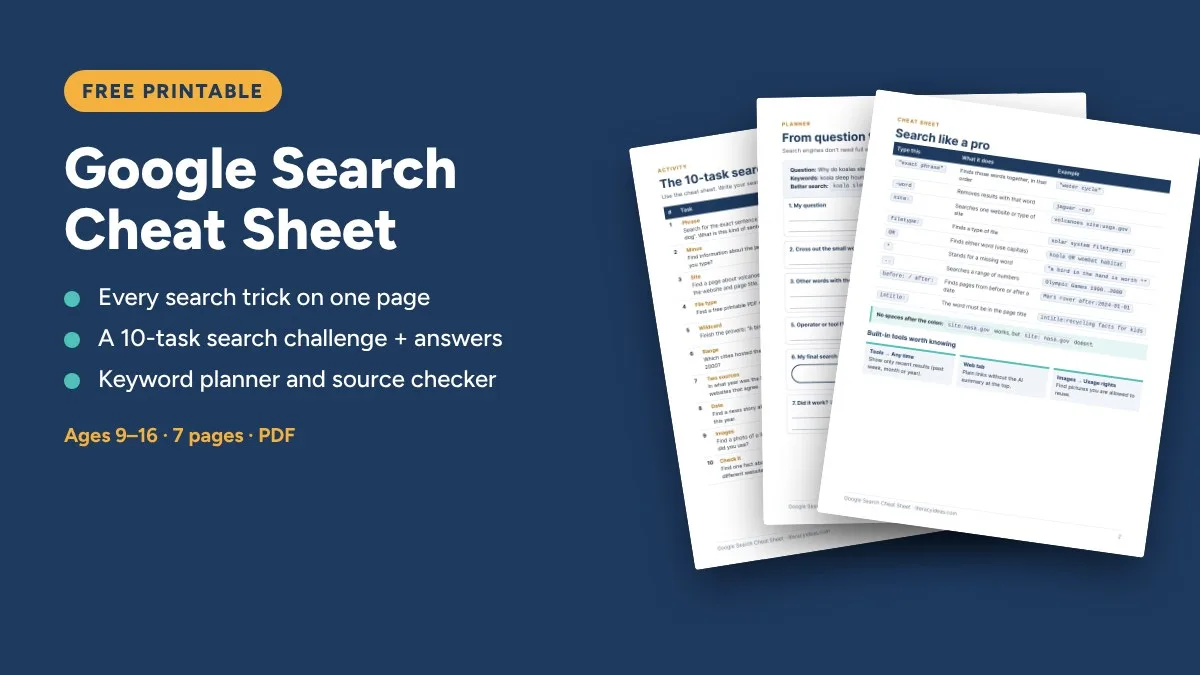
Google Search Tips at a Glance
- Use keywords, not sentences. Type the important words, not the whole question.
- Put exact phrases in quotes:
"water cycle". - Remove words you don’t want with a minus sign:
jaguar -car. - Search one website or type of site with
site:, e.g.volcanoes site:.gov. - Find printable files with
filetype:pdf. - Use Tools to filter by date or find images you are allowed to reuse.
- Check every source before you trust it, including the AI answer at the top of the page.
Step 1: Turn Your Question into Keywords
A search engine isn’t a person, so it doesn’t need a polite, complete question. It needs the words that matter. Short keyword searches are also easier to adjust: if the results aren’t right, you can add, swap or remove one word at a time.
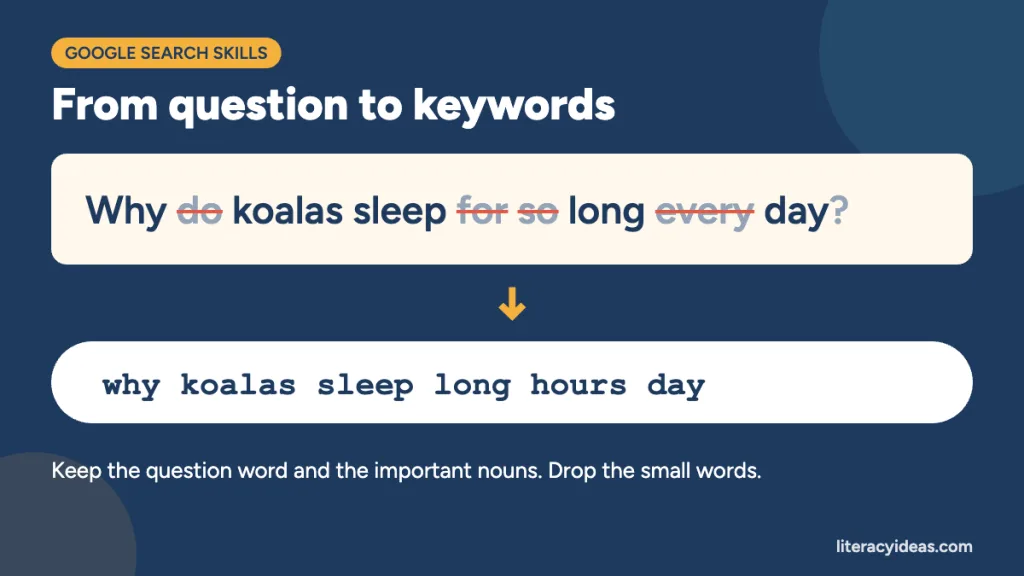
- Write your question down in full.
- Cross out the small words: do, the, a, for, so, every.
- Keep the question word if it matters (why, how, when), the important nouns and any key detail.
- Think of other words with the same meaning, in case the first search doesn’t work (diet instead of food).
- Search, look at the first page of results, then adjust one word at a time.
| Question | Keywords | A sharper search |
|---|---|---|
| What did people in ancient Egypt eat? | ancient Egypt food diet | "ancient Egypt" diet site:.edu |
| How many moons does Jupiter have? | Jupiter moons number | Jupiter moons site:nasa.gov |
| Why are bees important for farms? | bees pollination crops | bees pollination crops filetype:pdf |
Step 2: Use Search Operators (the Shortcuts That Still Work)
Search operators are symbols and short commands you type into the search box to tell Google exactly what you want. They have been around for years, but a few old favourites have been retired, so here are the ones that still work in 2026.
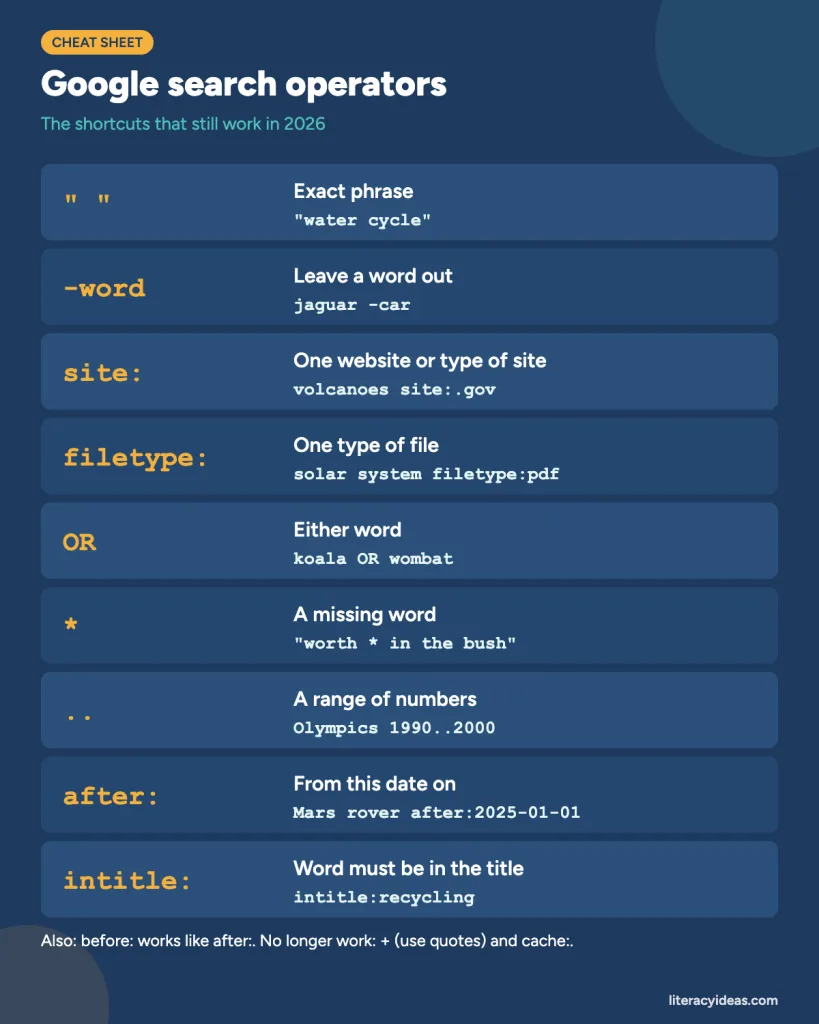
| Type this | What it does | Example | Students use it to… |
|---|---|---|---|
"exact phrase" | Finds those words together, in that order | "water cycle" | search for a named thing, a quote or a title |
-word | Removes results containing that word | jaguar -car | get rid of the wrong meaning of a word |
site: | Searches one website, or one type of site | volcanoes site:.gov | stick to trusted sources |
filetype: | Finds one kind of file | solar system filetype:pdf | find printable fact sheets and reports |
OR | Finds either word (type it in capitals) | koala OR wombat habitat | search two related ideas at once |
* | Stands in for a missing word | "a bird in the hand is worth *" | finish a quote or saying |
.. | Searches a range of numbers | Olympic Games 1990..2000 | find facts within a span of years |
after: / before: | Finds pages from after or before a date | Mars rover after:2025-01-01 | find recent (or historical) coverage |
intitle: | The word must appear in the page title | intitle:recycling facts for kids | find pages that are mainly about the topic |
Three mistakes that break operators
- A space after the colon.
site:nasa.govworks;site: nasa.govquietly turns into an ordinary search. - Lower-case or. Google only treats
ORas an operator in capitals. - Old tricks. The plus sign no longer forces a word into results (use quotes instead), and Google retired the
cache:operator in 2024.
Combine operators for a precise search
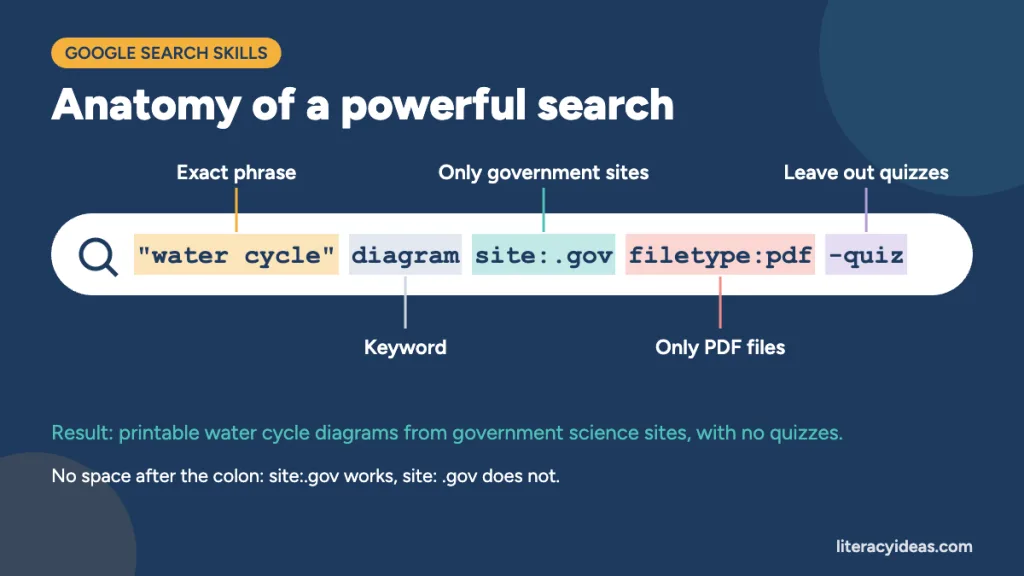
The real power comes from stacking them. The search "water cycle" diagram site:.gov filetype:pdf -quiz asks for printable PDFs about the water cycle, from government websites only, with quizzes left out. One line does the work of ten minutes’ scrolling.
Planning research skills lessons from scratch takes time. If you’d rather start with something ready, our How to Use Google Search Like a BOSS has slides, organisers and video tutorials on smart searching ($13.50 on TpT).
Step 3: Use Google’s Built-in Tools
If students find operators fiddly, Google’s buttons do much of the same job.
- Tools → Any time: limit results to the past day, week, month or year, or a custom date range. Essential for current events.
- Tools → All results → Verbatim: searches for your exact words, without spelling corrections or synonyms.
- Advanced Search (google.com/advanced_search): a fill-in-the-boxes form that builds the operators for you. Ideal for younger students.
- Images → Tools → Usage rights: shows pictures with Creative Commons licences, so students can find images they are allowed to reuse.
- Google Lens (the camera icon): search with a picture to find out what it shows or where it appeared first. Useful for checking whether a photo is really what a post claims.
- SafeSearch (in Google’s settings) filters explicit results. Many schools lock it on.
Step 4: Handle AI Overviews and AI Mode
Many Google searches now show an AI Overview: a summary written by AI at the top of the results, and Google also offers a chat-style AI Mode. They can be a handy starting point, but they can also be wrong, out of date or oversimplified, and they sometimes blend information from sources of very different quality.
- Treat the AI summary as a lead, not an answer. Click the sources it cites and check that they actually say what the summary claims.
- Want plain links? Click the Web tab under the search box to see ordinary results without the AI summary.
- Never copy AI text into your work. It may be inaccurate, and handing it in as your own writing is plagiarism.
Teaching students to use chatbots too? Our guide to AI literacy in schools covers how to check what AI tells you, with a free fact-check lesson.
Step 5: Check Whether a Source Is Reliable
Professional fact-checkers don’t judge a website by how professional it looks. They leave the page and find out what other people say about it, a habit called lateral reading. The SIFT method turns that into four quick moves students can remember.
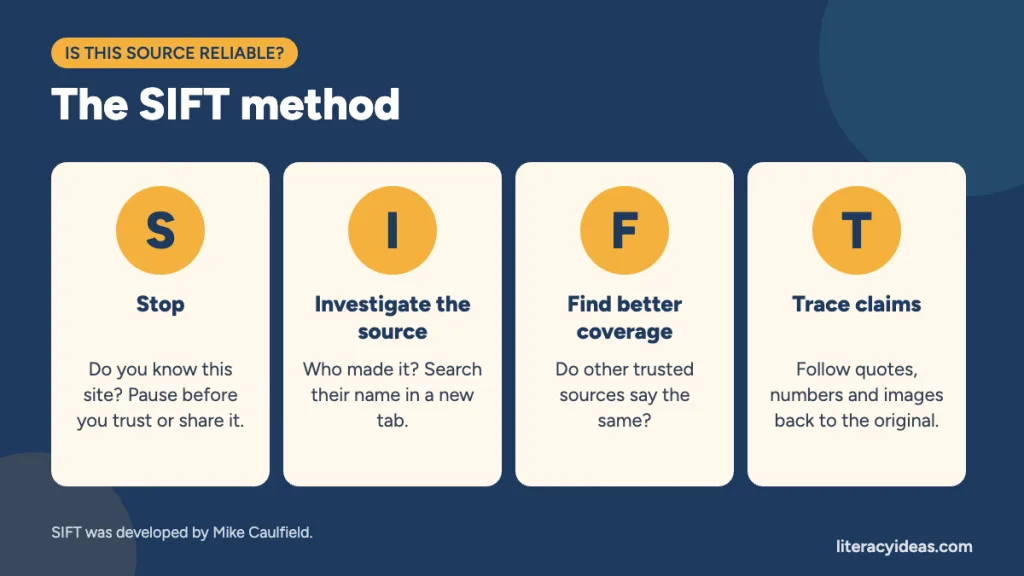
- Stop. Do you know this website? Is the headline trying to make you angry, scared or excited? Pause before you trust or share it.
- Investigate the source. Open a new tab and search the website’s or author’s name. Who are they, and why did they write this? (Our guide to author’s purpose helps here.)
- Find better coverage. Search the claim itself. Do trusted sources say the same thing?
- Trace claims. Follow quotes, statistics and pictures back to where they first appeared.
Website addresses give clues, but not guarantees: .gov and .edu sites are usually reliable, while a .com could be anything from a museum to a sales page. Also check the date and separate the facts from the opinions (see teaching fact and opinion). For deliberately false stories, our guide on how to spot fake news goes further.
Step 6: Record What You Find and Give Credit
Good searchers keep a simple research log as they go: the search they typed, the page title, the website, the date and the key facts in their own words. It saves hunting for a source later, and it is the first defence against plagiarism.
- Write facts in your own words straight away, not copied sentences. Our guide to summarising an article shows how.
- Note every source: author (if there is one), page title, website, date published and the web address.
- Use more than one source for any important fact.
For more on planning a whole research task, see our guide to research strategies for students.
Quick Search Challenges for the Classroom
Search skills stick when students practise them against the clock. Try these in pairs, and ask each pair to write down exactly what they typed.
- Find out what kind of sentence “the quick brown fox jumps over the lazy dog” is. (Use quotes.)
- Find information about the jaguar the animal, with no car results. (Use minus.)
- Find a printable PDF map of your country. (Use filetype:.)
- Which cities hosted the Summer Olympic Games between 1990 and 2000? (Use a number range.)
- In what year was the Eiffel Tower completed? Find two different websites that agree.
A Four-Lesson Sequence for Teaching Search Skills
| Lesson | Focus | Activities |
|---|---|---|
| 1. Asking good questions | Keywords, phrasing and searching on different devices | Search race, question-to-keywords planner |
| 2. Filtering and refining | Operators and Google’s Tools | Operator practice, search challenge |
| 3. Thinking critically | Reliable sources, facts and opinions, AI answers, safe image searches | SIFT on a real claim, image reverse-search |
| 4. Recording and giving credit | Research logs, paraphrasing, citing sources, plagiarism and managing search history | Mini research task with a source list |
Want the whole sequence ready to teach? How to Use Google Search Like a BOSS is a no-prep, 4-day research skills unit for grades 4–12, with instructional slides, graphic organizers and video tutorials. It covers asking good search questions, filtering results, critical thinking, facts and opinions online, safe image searching, citing sources and plagiarism. Rated 4.69 from 374 teacher reviews.
Frequently Asked Questions
What is the best way to search Google for school work?
Start with three or four keywords rather than a full question, add an operator such as site:.gov or "quotes" to narrow the results, and check any important fact on at least two reliable websites.
Do Google search operators still work?
Yes. Quotes, the minus sign, site:, filetype:, OR, the * wildcard, number ranges, before:/after: and intitle: all work. The plus sign and cache: no longer do.
Can students use Google’s AI answers for homework?
Only as a starting point. AI summaries can be wrong, so students should open the sources they cite, check the facts there, and write everything in their own words.
How can younger students search safely?
Turn on SafeSearch, start them on Google’s Advanced Search form so they don’t need to remember operators, and give them a short list of trusted sites to search with site:.
Related guides: Research strategies for students · How to spot fake news · Information and media literacy · Fact and opinion · Passion projects for students
Ready to teach it? Get the How to Use Google Search Like a BOSS on TpT ($13.50).